Why animations and SEO are hard to get right
Animations are one of the fastest ways to make a UI feel modern, but they are also one of the fastest ways to lose performance points.
Search engines don’t rank “animations” directly; they reward (among many other things) the page experience people have on a site: how fast content appears, how stable layout is, and how responsive the page feels.1
Lighthouse doesn’t score “animations” either; it reflects those same user experience signals. Plenty of motion can still score well when it’s applied in the right places.
How animations actually affect SEO
Animations rarely affect whether search engines can crawl or index content. Instead, their impact is indirect, flowing through user experience signals like Core Web Vitals.
Google considers real-user performance metrics, including Largest Contentful Paint (LCP), Cumulative Layout Shift (CLS), and Interaction to Next Paint (INP), as part of its page experience signals. Poor animation decisions can delay rendering, shift layouts, or block responsiveness, degrading these metrics.
Animations → Performance & responsiveness → Core Web Vitals → SEO impact
The goal is to design animations so that critical content renders immediately and interaction stays fast.
Where animations hurt Lighthouse scores
Most problems come from a small set of patterns. Once those are familiar, safe motion gets much easier.
Hiding content on load with JavaScript
A common mistake is making critical content invisible on load, then revealing it with JavaScript:
<h1 class="opacity-0 translate-y-4" data-animate>Hero title</h1>observer.observe(el);
el.classList.add('opacity-100', 'translate-y-0');Even with CSS transitions, starting the hero invisible can make the page look slow or unstable to performance audits.
The three Core Web Vitals that matter
- LCP (Largest Contentful Paint): when the main visible content appears. “Good” is ≤ 2.5s.
- CLS (Cumulative Layout Shift): how much layout jumps unexpectedly. “Good” is ≤ 0.1.
- INP (Interaction to Next Paint): responsiveness after user input. “Good” is ≤ 200ms.
These definitions and thresholds follow Google’s Core Web Vitals guidance.2
Lighthouse uses lab data (simulated conditions), while Core Web Vitals in Search Console use real users. If an animation is fragile under slow CPU/network, it usually shows up in both places over time.
LCP and what NO_LCP actually means
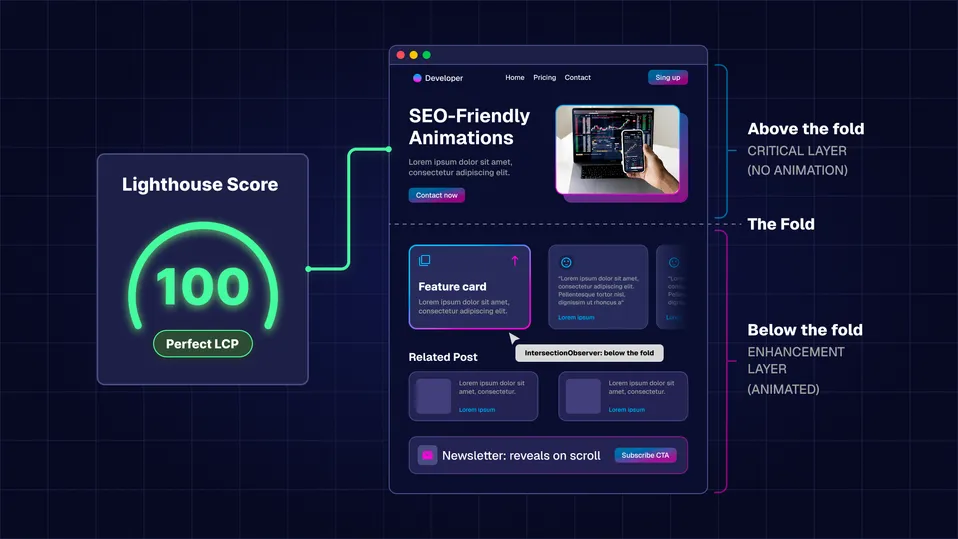
“Above the fold” is simply the initial viewport: what users see before scrolling (header, hero headline, primary CTA, often the hero image). The term comes from newspapers, where the most important headlines were placed on the top half of the folded front page.
If this area is delayed or jumps around, LCP and CLS usually degrade quickly. A good rule of thumb: critical above-the-fold content should be visible immediately, without waiting for animation JavaScript.
Don’t (above the fold):
-
Start the hero headline/image at
opacity: 0,visibility: hidden,display: none, orscale(0) -
Gate the hero/header behind an
IntersectionObservercallback -
Delay critical UI with “reveal” JavaScript (even if the CSS transition is smooth)
Do (above the fold):
-
Render critical content at full opacity immediately
-
Reserve space for media (explicit dimensions /
aspect-ratio) so layout doesn’t jump -
Keep motion small and non-blocking (hover states, subtle decorative movement)
When Lighthouse reports NO_LCP, it means it didn’t record a Largest Contentful Paint candidate during its audit window.
This often happens when the largest element (commonly the hero image or <h1>) is hidden on load and only revealed after JavaScript runs, but it can also happen when no eligible candidate appears in time. In those cases, the likely LCP element can become visible too late for Lighthouse to treat it as LCP, so it reports no LCP.
(It can also happen in edge cases like early tab backgrounding or quick navigation away.)
Layout animations and CLS
Animating layout properties can trigger layout shifts and hurt CLS.
/* Risky for CLS */
.panel {
  height: 0;
  transition: height 300ms ease;
}

.panel.open {
  height: 220px;
}
Animating height, width, top, left, or inserting unsized media can move other elements around.
A safer pattern is to:
- Reserve space up front (e.g., with
aspect-ratioor fixed dimensions). - Use
transformandopacityfor motion whenever possible.
The difference is significant. Animating left from 0 to 100px typically triggers layout work on every frame. Animating transform: translateX(100px) usually avoids layout and stays on the compositor (often GPU-accelerated).
These recommendations align with Google’s guidance on high-performance CSS animations.3
Heavy animation scripts and Interaction to Next Paint (INP)
IntersectionObserver itself is not bad, but observing many nodes and doing expensive callback work can add main-thread pressure, especially on lower-end devices. That can hurt interaction responsiveness and show up as worse INP.
The issue is not “using JavaScript” but how much work runs and when it runs. INP is particularly sensitive to long tasks that overlap with user interactions.
INP-safe defaults tend to look like: keeping observer callbacks short (set a class and exit), avoiding layout reads (getBoundingClientRect, offsetHeight, getComputedStyle), and deferring expensive work (asset loading, complex initialization) via requestIdleCallback (with a fallback), scheduler.postTask (where available), or setTimeout.
A two-layer mental model for animations
To keep decisions simple, split your UI into two layers based on when the user sees them:
1. Above the fold — critical layer (static by default)
This is what the user sees immediately. It should be visible and stable from first paint.
- Header and navigation: Users need to know where they are and how to get around instantly.
- Hero section: Headline, primary image, and CTA should render immediately.
- Main content and forms: If the page is a task (login/contact), don’t fade it in.
- Critical trust signals: Show credibility indicators immediately.
2. Below the fold — enhancement layer (animated)
This is content revealed after scrolling, which makes it safe territory for reveals, stagger, and decorative motion.
- Feature grids and cards: Great for staggered scroll reveals.
- Testimonials and social proof: Reviews/case studies can slide or fade in.
- Related or recommended content: “More to read” lists and carousels.
- Decorative elements: Background shapes or secondary imagery.
- Footers and secondary sections: Newsletter signups and secondary links.
A good default: everything a user needs in the first second to understand or use the page should be visible and stable; everything else is a candidate for animation.
Different pages need different animation budgets
It helps to set an animation budget for the page. Not every page deserves the same amount of motion:
-
Discovery pages (Home, landing pages, blog lists) — Medium–high animation. Users browse and explore, so motion can guide attention.
-
Reading pages (Blog articles, docs) — Low animation. Users read continuously, so anything that distracts from text is expensive.
-
Task pages (Contact, login, checkout) — Minimal animation. Users have a specific goal, so clarity and speed beat delight.
Safe animation patterns
With those principles in mind, here are patterns that hold up in production.
Progressive enhancement for scroll reveals
One of the safest ways to approach scroll reveals is progressive enhancement: keep content visible by default, then add reveal animations for below-the-fold content once JS is ready.
/* Baseline: visible for everyone */
[data-animate] {
  opacity: 1;
  transform: none;
}

/* Enhancement: only when JS is attached AND element is below fold */
.js [data-animate]:not(.above-fold) {
  opacity: 0;
  transform: translateY(20px);
  transition:
    opacity 0.5s ease-out,
    transform 0.5s ease-out;
}

.js [data-animate].is-visible {
  opacity: 1;
  transform: none;
}
// FOUC-safe setup:
// - Attach `.js` as early as possible (ideally inline in <head>)
// - If this runs late, below-the-fold elements can flash visible, then hide
// 1. Attach the .js class to enable animations
document.documentElement.classList.add('js');
// 2. Set up the observer
const observer = new IntersectionObserver(
(entries) => {
entries.forEach((entry) => {
if (!entry.isIntersecting) return;
// 3. Trigger animation and stop observing
entry.target.classList.add('is-visible');
observer.unobserve(entry.target);
});
},
{ threshold: 0.15 },
);
// 4. Only observe elements that are NOT above the fold
document.querySelectorAll('[data-animate]:not(.above-fold)').forEach((el) => {
observer.observe(el);
});<!-- Critical content: visible immediately (no animation) -->
<section class="hero above-fold">
<h1>Build fast websites</h1>
</section>
<!-- Non-critical content: enhanced animation -->
<section class="features" data-animate>
<h2>Features</h2>
</section>Result: crawlers and users always see critical content, LCP can fire immediately, and the page still works if JS fails.
It’s also important to support users who prefer reduced motion:
@media (prefers-reduced-motion: reduce) {
  .js [data-animate] {
    opacity: 1;
    transform: none;
    transition: none;
  }
}
CSS scroll-driven animations (modern alternative)
When possible, JavaScript can be skipped for scroll reveals in favor of native scroll-driven animations:
@keyframes fade-slide-in {
  from {
    opacity: 0;
    transform: translateY(24px);
  }
  to {
    opacity: 1;
    transform: none;
  }
}

@supports (animation-timeline: view()) {
  .scroll-fade {
    animation: fade-slide-in linear both;
    animation-timeline: view();
    animation-range: entry 20% cover 30%;
  }
}
This creates a scroll reveal with no JavaScript runtime, which can help keep the main thread free (good for INP). Keep it below the fold, since many reveal animations start at opacity: 0.
Support is best in modern evergreen browsers (Chrome / Edge, Safari 17+). Check MDN for current compatibility.4
Staggered transition delays for smoother reveals
For a more natural reveal, a small per-item stagger delay can help. This uses the same progressive enhancement pattern: data-animate, .is-visible, and only safe properties (opacity and transform):
/* Override the base transition to accept a per-element delay */
.js [data-animate]:not(.above-fold) {
  transition:
    opacity 0.5s ease-out var(--delay, 0s),
    transform 0.5s ease-out var(--delay, 0s);
}<section class="features">
<div data-animate style="--delay: 0ms">Feature one</div>
<div data-animate style="--delay: 100ms">Feature two</div>
<div data-animate style="--delay: 200ms">Feature three</div>
</section>Each card uses the same data-animate attribute. The --delay custom property offsets each item’s transition start, so they cascade instead of appearing all at once.
Delays work best kept short (usually 0–200ms). Longer delays can make the page feel slow and can work against perceived performance.
Advanced: will-change and content-visibility (performance hints)
will-change(use sparingly): a hint to the browser that an element is about to change, so it can prepare optimizations (often by creating an extra compositor layer / allocating GPU resources). It can make heavy transitions smoother, but it also costs memory. Use it only for genuinely heavy motion, scope it to the property you animate (usuallytransform), and only keep it enabled during the transition.
/* Heavy 3D motion: only hint during the transition */
.js .animate-3d-flip.is-animating {
  will-change: transform;
}
// Clean up will-change after the heavy transition finishes.
// If you transition multiple properties, only clean up after `transform` ends.
const el = document.querySelector('.animate-3d-flip');
if (el) {
const onTransitionEnd = (event) => {
if (event.propertyName !== 'transform') return;
el.classList.remove('is-animating');
el.removeEventListener('transitionend', onTransitionEnd);
};
// Add right before triggering the heavy transition (e.g., in a click handler)
el.classList.add('is-animating');
el.addEventListener('transitionend', onTransitionEnd);
}content-visibility: auto(render skipping): tells the browser it can skip most rendering work for offscreen content until the user scrolls near it. This is useful for very heavy below-the-fold sections (long lists, complex UI, embeds). It’s separate from animation: it’s about not doing work yet. Reserve space (e.g.,contain-intrinsic-size) to avoid CLS, and don’t apply it to critical above-the-fold content.
/* Heavy below-the-fold sections (separate concept from animation) */
.heavy-below-fold {
  content-visibility: auto;
  contain-intrinsic-size: 800px;
}
SEO-friendly animation checklist
SEO-friendly animation isn’t about shipping more motion; it’s about protecting the first paint and the first interaction. Keep above-the-fold content visible and stable, then treat motion as an enhancement once the page is already usable.
TL;DR:
- Keep above-the-fold content visible and stable from first paint.
- Animate below the fold with
transformandopacity. - Respect
prefers-reduced-motion. - Keep animation JS small: toggle a class, avoid layout reads.
When in doubt, shipping it static first and enhancing later is the safer bet.
Footnotes
-
Google Search Central, “Understanding page experience in Google Search results”, https://developers.google.com/search/docs/appearance/page-experience ↩
-
Google, “Web Vitals”, https://web.dev/articles/vitals ↩
-
web.dev, “How to create high-performance CSS animations”, https://web.dev/articles/animations-guide ↩
-
MDN Web Docs, “animation-timeline”, https://developer.mozilla.org/en-US/docs/Web/CSS/Reference/Properties/animation-timeline ↩
